Accessory Modules
| Table of Content | Headset |
|---|---|
| 1. Hand Tracking Setup - Official | P2/Crystal |
| 2. Eye Tracking install Guide - Official | P2/Crystal |
| 3. ET Usb 3.0 Guide(All) |
- Official | |
| Table of Content | Headset |
|---|---|
| 1. Hand Tracking Setup - Official | P2/Crystal |
| 2. Eye Tracking install Guide - Official | P2/Crystal |
| 3. ET Usb 3.0 Guide(All) |
Sept 24, 2020
By: @Pimaxquorra (PimaxVR)
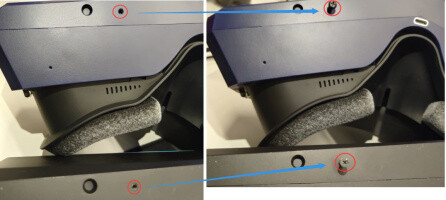
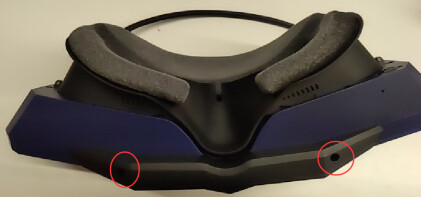
The hand tracking module is compatible with the Pimax Artisan, 5k+, 8K, XR, 8K+ and 8KX headsets and can be installed in just a few minutes or less. This device is designed with the latest technology and optimized for a wide field of view.
It is best if your headset is not plugged into your pc or power supplies when installing your hand tracking module.
Installation Steps:
Please make sure you have installed the latest Pitool software. It is required you use at least version 263. You can download the software here: https://www.pimax.com/pages/pitool (the download is the 2nd version shown on the page).
After you have installed and secured the hand tracking hardware to your headset you can now connect your headset to the power and your PC.
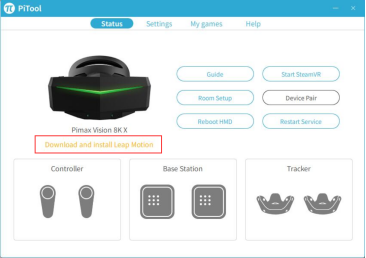
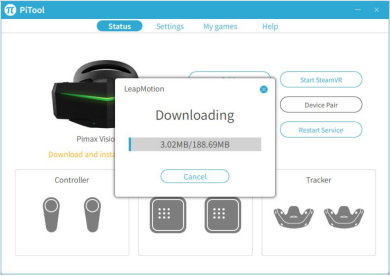
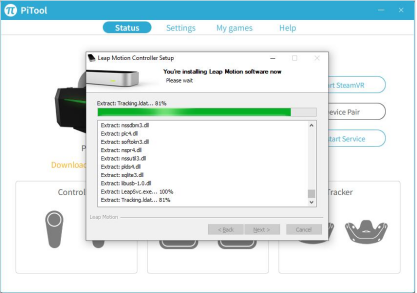
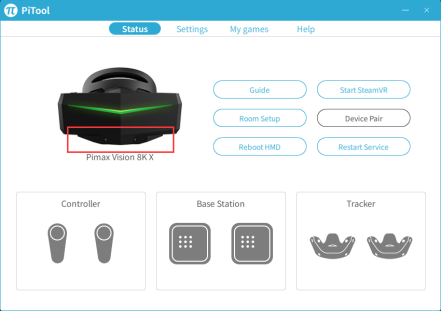
The latest Pitool software will automatically detect your new Hand Tracking module and will display a link to download and install the required driver software for the hand tracking Module as shown in the following image.
All Done! Your new hardware is installed and the software is ready for action.
Software Applications:
Now it’s time to try out your new hand tracking module with some software!
Demo Apps
There are many sample apps you can download here:
https://gallery.leapmotion.com/
Some suggested demo apps are: Cat Explorer / Mirrors / Paint / Particles / Shortcuts
Youtube Video 1
Youtube Video 2
ED Forums Hand Tracking Added Added Forum link @Yata_PL
Youtube Video 1
Youtube Video 2
It emulates controllers so its more of a stopgap measure but it can be useful in sim games, where the controller might be used for menus and stuff while a real stick/wheel is used for the primary input.
July 23, 2020
By: @Pimaxquorra (PimaxVR)
Video Guide :
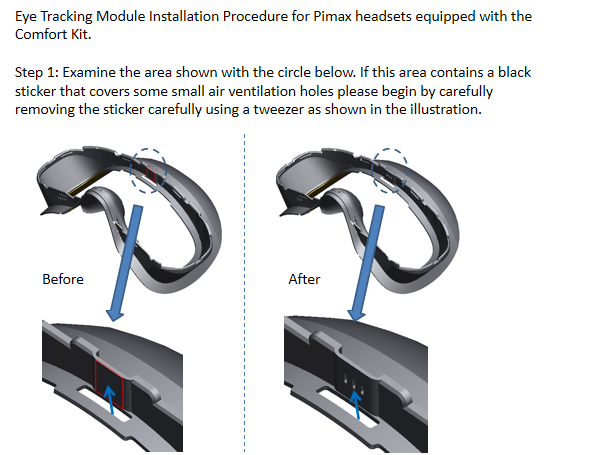
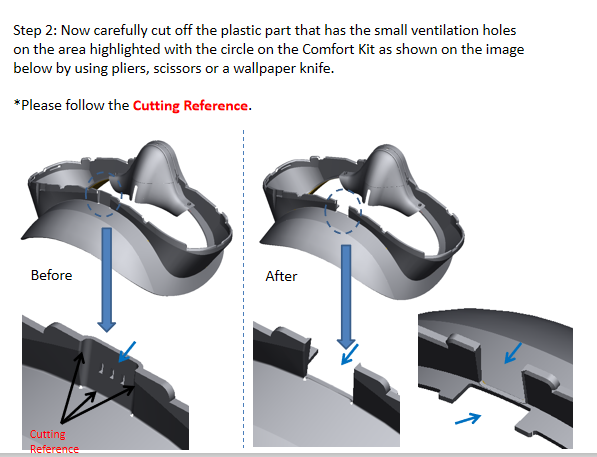
Illustrations Guide :
Sept 3, 2029
By @Pimaxquorra (PimaxVR)
We are developing a comprehensive eye tracking module guide that answers ALL known questions and should have that ready for download within a few days. We also have new versions of the software as a high priority for the two teams who are working on this.
To test if the Eye Tracking module is operating in USB 3.0 mode just follow these steps:
(please exit all eye tracking software like Pitool before performing this test)
Please download and install the Eye Tracking Measurement Tool (AMCAP) here: https://amcap.en.softonic.com/
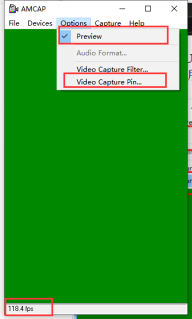
Open AMCAP and select the drop-down menu called “Options” as shown in the photo below.
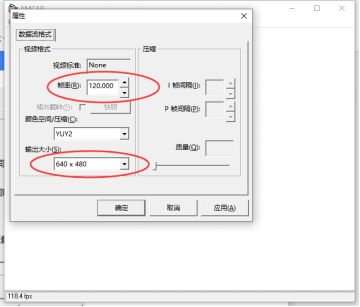
3.Select 120 frame rate and 640*480 resolution.
4.If 118 FPS appears in the lower left corner this means that the eye tracking is working in USB3.0 mode.
Troubleshooting: If 118 FPS does not appear please make certain you are connected to a USB 3.0 compatible port on your PC and using a high quality USB 3.0 cable.
Additional Notes:
Here are some cables that can be used for the Eye Tracking module
(preliminary list)
Currently Tested Cables:
https://www.amazon.com/dethinton-Transfer-Charging-Compatible-Headset/dp/B087JKBM6W